Integrating a Third-Party DAM into Optimizely CMS 12: A Case Study
Integrating a Third-Party DAM into Optimizely CMS 12: A Case Study
By William Parr
12 min read
There is no handbook for wiring an external DAM into Optimizely CMS 12. This case study walks through the research, dead ends, and breakthroughs — decompiling the CMP package, extending ContentReferenceEditor, proxy content items, and a custom Assets pane tab — using Wedia as the concrete example.
- Authors

- Name
- William Parr
Optimizely ships a polished path for Optimizely DAM (which lives inside their Content Marketing Platform (CMP)): NuGet packages, integration UI, asset picker. For any other DAM, the trail can go cold fast. Sanjay Katiyar's Bynder post proves a third-party integration is possible — but it is essentially the only public write-up of that kind. No step-by-step guide for CMS 12, no "extend the built-in image picker" recipe.
For a recent project we needed exactly that: editors choosing between native CMS Media and an external DAM, cropping and focal point in the DAM (not in Optimizely), and headless delivery via Optimizely Graph. The DAM we were looking to integrate was Wedia, and we were starting from scratch.
This post is a case study of that integration: the analysis, wrong turns, and the patterns that survived. If your DAM exposes an iframe picker or similar JSON contract, most of this should transfer; the Wedia-specific bits are labelled as such.
TL;DR: A third-party DAM in Optimizely CMS 12 probably does not need a full asset-provider module like the official CMP integration. If your DAM offers an iframe picker and returns structured JSON on pick, a workable recipe is: extend the built-in ContentReferenceEditor, wire it with module.config, POST the pick result to your own API to create proxy content items, and register a custom Assets pane tab. AI and decompilers helped us orient; CMS.zip and other add-ons' source code taught us what actually worked.
What we were aiming for
For context, the agreed requirements on our project boiled down to:
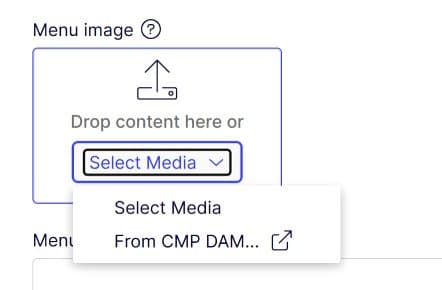
- Image and video fields in CMS should offer Wedia alongside Media, similar to how the Optimizely DAM asset picker works when CMP is connected to CMS.
- Wedia handles crop and focal point; Optimizely stores the result and metadata.
- Picked assets become
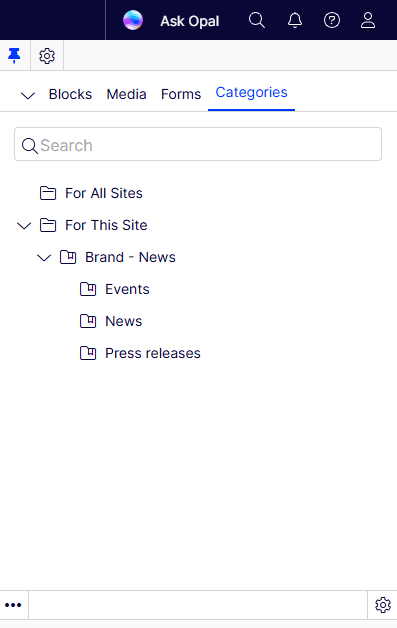
Wedia Image/Wedia Document/Wedia Videocontent items with editable alt text per language. - A Wedia tab in the Assets pane shows For All Sites and For This Site folders for assets created via the picker.
So we're looking to extend the default media picker in Optimizely CMS in a similar fashion to how they do it themselves:
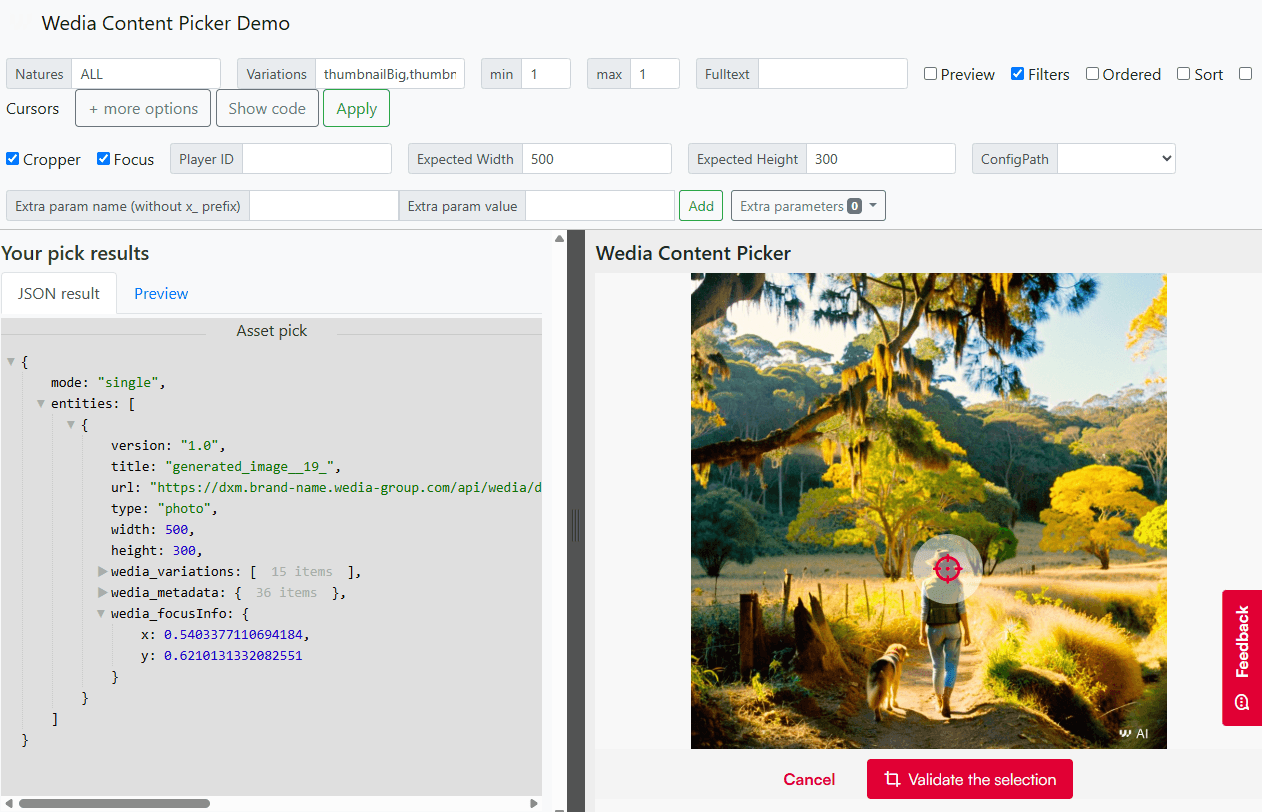
And we want it to communicate with Wedia in a way that utilises the features their Content Picker sandbox offers:
Phase 1: Research when the docs run out
Before writing our own code, we spent serious time mapping what Optimizely already does for their DAM versus what we would have to invent. That gap is large, and the public material is thin.
The documentation landscape
| Source | What it covers | Gap for us |
|---|---|---|
| Ha Bui — CMP Integration UI addon | Optimizely DAM UX: "pick from DAM" on a ContentReference, pop-up library, preview on the field | CMP-specific; not reusable for Wedia, but the UX target |
| Sanjay Katiyar — Bynder integration | Third-party DAM in CMS — the closest precedent we found | High-level; no CMS 12 / Dojo / ContentReferenceEditor detail |
| welcome-dam-cms11 (GitHub) | Community module for Welcome DAM (deprecated) | Useful module shape, overengineered for our needs |
| Describe content in the UI | IContentRepositoryDescriptor, assets pane components | API reference, not an integration walkthrough |
So: one blog post for Bynder, one for Optimizely's own DAM, deprecated GitHub for CMP (formerly known as Welcome)... and nothing that says "here is how you extend the image field editor in CMS 12." We had to assemble the answer ourselves.
The CMP package, dotPeek, ChatGPT, and Opal
We uploaded the EPiServer.Cms.WelcomeIntegration.UI package (ZIP) to both ChatGPT and Optimizely Opal and asked them to explain how the DAM picker works.
Useful: folder layout (ClientResources/Scripts, shell modules, UIDescriptor), and the realisation that the integration is mostly client-side wiring, not a giant server API.
Misleading: ChatGPT's first pass suggested IContentProvider, custom asset providers, and scheduled metadata sync — far more than Wedia requires. Opal proposed a custom string property and a standalone Dojo widget. We ended up elsewhere: ContentReference, extending ContentReferenceEditor, and proxy content items.
We also decompiled the CMP package with dotPeek. It reinforced what ChatGPT found: lots of server-side DAM UI infrastructure we did not need, but a clear hint about UIDescriptor registration and creating CMS content from picker JSON via an API endpoint.
CMS.zip and Shell.zip
The breakthrough for how to extend the field editor came from unpacking Optimizely's own modules — especially CMS.zip (specifically its folder ClientResources/epi-cms/contentediting/editors). That is where ContentReferenceEditor and the image-specific behaviour live. We waded our way through anything related to content selection and the Media pane until extending the built-in editor felt feasible instead of replacing it.
Geta Optimizely Categories
Extending the Assets pane with a custom tab that contained its own "For This ..." folders proved equally as challenging to figure out as the picker itself. Official docs explained ComponentDefinitionBase and PlugInArea.AssetsDefaultGroup, but the working example was Geta Optimizely Categories (most notably, CategoryRootUIDescriptor.cs, CategoryContentRepositoryDescriptor.cs). Our WediaRepositoryDescriptor and WediaRootUIDescriptor follow the same idea — virtual roots for "all sites" vs "this site".
Phase 2: Understand your DAM's contract first
Every third-party integration lives or dies on what the DAM returns when an editor picks an asset. For Wedia, the basic gist is:
- Load
content-picker.js - Open an iframe (
WediaContentPicker.attach({ server, onPick, … })) - Receive JSON on pick — oEmbed-compatible, extended with
wedia_*properties
The most important picker settings for us are expectedWidth / expectedHeight + showCropper (crop step in Wedia before return).
A simplified pick result for context:
{
  "mode": "single",
  "entities": [
    {
      "title": "product-shot-example",
      "url": "https://example.wedia-group.com/api/wedia/dam/transform/…/out?t=crop&fx=0.500&fy=0.500&outputWidth=500&outputHeight=300",
      "type": "photo",
      "width": 500,
      "height": 300,
      "wedia_variations": [
        { "name": "original", "url": "…" },
        { "name": "cropped", "width": 500, "height": 300, "url": "…" }
      ],
      "wedia_metadata": {
        "$uuid": "…",
        "id": "7074",
        "name": "product-shot-example",
        "alttag": "English text",
        "alttagfr": "…",
        "assettype": { "id": 7, "name": "Productshot" }
      },
      "wedia_focusInfo": { "x": 0.5, "y": 0.5 }
    }
  ]
}
On the CMS side we needed to deserialize this into WediaAssetRequest and create a WediaImage (or document/video) content item. Crop and focal point for the live site come from the transform URL (fx/fy, dimensions) and stored variation URLs — not from re-cropping in Optimizely.
Phase 3: Breakthroughs (in order)
These steps are DAM-agnostic where possible; class and endpoint names below reflect our Wedia implementation.
1. module.config — the widget actually loads
Custom Dojo only runs if Optimizely can find it. Our module.config maps the fictional dummy namespace to ClientResources/Scripts and registers the assets pane enhancer:
<dojo>
  <paths>
    <add name="dummy" path="Scripts" />
  </paths>
</dojo>
Without this file, nothing else matters. I lost hours once to a perfect editor descriptor and a script that never loaded.
2. Extend ContentReferenceEditor, do not reinvent it
This is a two-part bridge: C# tells Optimizely which Dojo module to load and what settings to pass; the Dojo module subclasses the built-in editor and adds DAM behaviour on top.
Relevant files (our repo):
| File | Role |
|---|---|
WediaAssetEditorDescriptor.cs | Sets ClientEditingClass and EditorConfiguration["wediaSettings"] |
/wwwroot/ClientResources/Scripts/WediaAssetPicker/WediaAsset.js | Dojo module — extends ContentReferenceEditor |
module.config | Maps dummy → Scripts so dummy/WediaAssetPicker/WediaAsset resolves |
Server side — wire the custom editor (don't overlook the OverrideDefault enum value here):
[EditorDescriptorRegistration(
    TargetType = typeof(ContentReference),
    UIHint = UIHint.Image,
    EditorDescriptorBehavior = EditorDescriptorBehavior.OverrideDefault)]
public class WediaAssetEditorDescriptor : ContentReferenceEditorDescriptor
{
    public override void ModifyMetadata(ExtendedMetadata metadata, IEnumerable<Attribute> attributes)
    {
        ClientEditingClass = "dummy/WediaAssetPicker/WediaAsset";

        metadata.EditorConfiguration["wediaSettings"] = new
        {
            endpoint = _configuration.DamEndpoint,
            minAssets = _configuration.DamMinAssets,
            maxAssets = _configuration.DamMaxAssets,
            assetNatures = UIHint.Image.ToUpper(),
            cursor = _configuration.DamCursor,
            propertyUniqueId = Guid.NewGuid().ToString()  // guards postMessage routing
        };

        base.ModifyMetadata(metadata, attributes);
    }
}
propertyUniqueId matters too: if an editor has multiple image fields open, the pop-up's postMessage reply must land on the right one.
Client side — declare against ContentReferenceEditor:
The module name in define(...) must match the path from ClientEditingClass (dummy/WediaAssetPicker/WediaAsset → file under Scripts/WediaAssetPicker/WediaAsset.js).
define('dummy/WediaAssetPicker/WediaAsset', [
  'epi-cms/widget/ThumbnailSelector',
  'epi-cms/contentediting/editors/ContentReferenceEditor',
  'dojo/_base/declare',
  'dojo/dom-construct',
  'dojo/on',
  'dojo/_base/lang',
  'dojo/query',
  'dojo/aspect',
  'dijit/Dialog',
  'dijit/form/NumberSpinner',
  'epi-cms/core/ContentReference',
  'epi/dependency',
  'dojo/when',
  // …other Dojo / dijit deps
], function (
  ThumbnailSelector,
  ContentReferenceEditor,
  declare,
  domConstruct,
  on,
  lang,
  query,
  aspect,
  Dialog,
  NumberSpinner,
  ContentReference,
  dependency,
  when
) {
  return declare([ContentReferenceEditor], {
    // Images use ThumbnailSelector (native preview); videos keep default selector
    _getContentSelectorType: function () {
      if (this.wediaSettings?.assetNatures === 'VIDEO') {
        return this.inherited(arguments)
      }
      return ThumbnailSelector
    },

    postCreate: function () {
      this.inherited(arguments)
      this._resolveDamStore()
      this._addDamButtonToContentBox()
      this._overrideClearButtonBehavior()
    },

    _resolveDamStore: function () {
      var registry = dependency.resolve('epi.storeregistry')
      this._store = registry.create(
        'epi.cms.dam.integration.store',
        '/DamAssetPicker/CreateProxyContent'
      )
    },

    _addDamButtonToContentBox: function () {
      var self = this
      setTimeout(function () {
        var buttonContainer =
          query('.epi-content-selector-plugnplay-actionsContainer', self.domNode)[0] || self.domNode

        var addButton = domConstruct.create(
          'button',
          {
            className: 'dijitReset dijitInline dijitButtonNode',
            innerHTML: '<span class="dijitButtonText">Select from DAM</span>',
          },
          buttonContainer
        )

        on(addButton, 'click', function (e) {
          e.preventDefault()
          if (self.wediaSettings?.assetNatures === 'VIDEO') {
            self._openDamPicker()
          } else {
            self._showDimensionSelectionDialog(function (width, height) {
              self.selectedWidth = width
              self.selectedHeight = height
              self._openDamPicker()
            })
          }
        })
      }, 100)
    },
  })
})
Key design choices in that file:
declare([ContentReferenceEditor], …)— inherit drag-and-drop, Media browse, and the hiddenContentReferenceinput; only add DAM on top.- Inject into
.epi-content-selector-plugnplay-actionsContainer— same slot Optimizely uses for plug-and-play actions on the field. _overrideClearButtonBehavior— when a DAM asset is selected, clear must reset our custom thumbnail state, not only the native path._updateNativeUIWithWediaAsset(not shown above) — manually togglesdijitHidden, setsimg[src], and updates the hidden input so the field looks like a normal image pick before theContentReferenceis set.
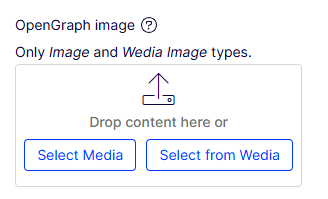
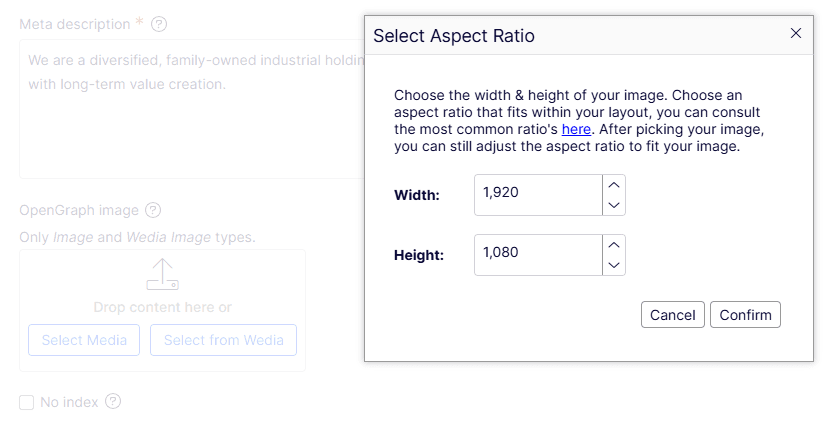
3. Pop-up, postMessage, and the width/height dialog
The field editor and the DAM iframe do not share a DOM. We use a pop-up page plus postMessage in both directions.
Relevant files:
| File | Role |
|---|---|
WediaAsset.html | Pop-up shell — loads vendor content-picker.js, hosts iframe |
WediaAssetPickerController.cs — GET /WediaAssetPicker/WediaAsset | Serves the HTML from ClientResources to prevent displaying a file path in the pop-up URL |
WediaAsset.js — _openWediaPicker, _handleWediaMessage | Opens pop-up, sends settings, receives pick |
WediaAssetPickerController.cs — POST /WediaAssetPicker/CreateProxyContent | Creates proxy content; called from Dojo via epi.storeregistry |
Opening the pop-up (parent — field editor):
_openWediaPicker: function () {
    var url = "/WediaAssetPicker/WediaAsset";
    window.addEventListener("message", lang.hitch(this, this._handleWediaMessage), false);

    this.wediaWindow = window.open(url, "WediaContentPicker",
        "width=1050,height=850,resizable=yes,scrollbars=yes");

    var settings = this.wediaSettings || {};
    if (this.selectedWidth && this.selectedHeight) {
        settings.expectedWidth = this.selectedWidth;
        settings.expectedHeight = this.selectedHeight;
    }
    this.propertyUniqueId = settings.propertyUniqueId;

    this.wediaWindow.addEventListener("load", function () {
        this.wediaWindow.postMessage(settings, "*");    // Security checks omitted for brevity
    }.bind(this));
},
Hosting the vendor picker (child — pop-up page):
window.addEventListener(
  'message',
  function (event) {
    var settings = event.data
    var script = document.createElement('script')
    script.src = settings.endpoint + '/asset-picker/wedia-content-picker.js'
    script.onload = function () {
      WediaContentPicker.attach({
        el: document.querySelector('#wedia-asset-picker'),
        server: settings.endpoint,
        assetNatures: settings.assetNatures,
        expectedWidth: settings.expectedWidth,
        expectedHeight: settings.expectedHeight,
        min: settings.minAssets,
        max: settings.maxAssets,
        cursor: settings.cursor,
        onPick: function (assets) {
          if (assets?.entities?.length && assets.mode === 'single') {
            window.opener.postMessage(
              {
                selectedAsset: assets.entities[0],
                propertyUniqueId: settings.propertyUniqueId,
              },
              '*'
            )
          }
        },
      })
    }
    document.head.appendChild(script)
  },
  false
)
Handling the pick (parent — back in the field editor):
_handleWediaMessage: function (event) {
    if (!event.data?.selectedAsset ||
        event.data.propertyUniqueId !== this.propertyUniqueId) {
        return;
    }

    var asset = event.data.selectedAsset;
    var thumbnailUrl = asset.url;
    var thumb = asset.wedia_variations?.find(function (v) { return v.name === "thumbnailBig"; });
    if (thumb) thumbnailUrl = thumb.url;

    this.wediaWindow.close();
    this._cleanupWediaPicker();

    when(this._store.put(asset)).then(function (contentId) {
        var value = new ContentReference(contentId).toString();
        this._updateNativeUIWithWediaAsset(thumbnailUrl, asset.title, value);
        this._onSelectorValueChange(value);
        this.onExecuted(value);
    }.bind(this));
},
this._store.put(asset) is the elegant bit: Optimizely's epi.storeregistry REST store POSTs the pick JSON to CreateProxyContent (more on that in a bit), gets back a content ID, and the editor sets a normal ContentReference — same as picking from Media.
Width/height dialog lives entirely in WediaAsset.js (_showDimensionSelectionDialog) using dijit/Dialog. Images require both dimensions so Wedia's cropper receives expectedWidth / expectedHeight; videos skip straight to _openWediaPicker.
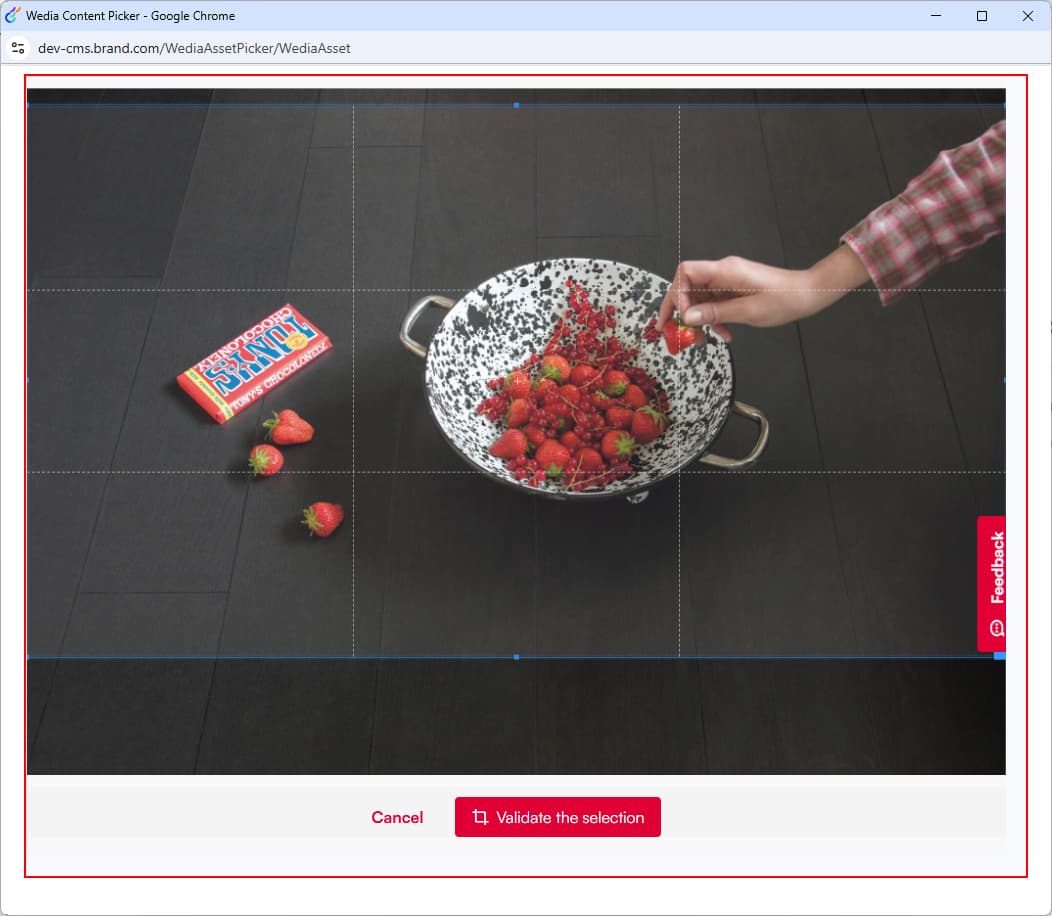
When continuing to the Wedia Content Picker we can now see that the desired aspect ratio is applied via a bounding box on the picked asset, ready to generate that crop:
4. Proxy content items, not string IDs
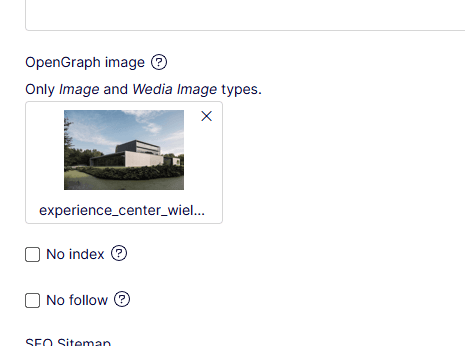
When the Dojo field editor calls this._store.put(asset), Optimizely POSTs the raw pick JSON (one entity from Wedia's entities[] array) to /WediaAssetPicker/CreateProxyContent. The API deserialises it, creates a real WediaImage / WediaVideo under the site Wedia root (we'll get to that too soon), and returns a content ID. That ID becomes a normal ContentReference on the block or page — same as picking from Media.
Relevant files:
| File | Role |
|---|---|
WediaAssetRequest.cs | Maps Wedia's oEmbed JSON to C# content models |
WediaAssetPickerController.cs — CreateProxyContent | Creates and publishes the proxy item |
WediaImage.cs / WediaVideo.cs | CMS content types — mostly read-only DAM fields + editable alt tags |
WediaContentRepositoryExtensions.cs — CreateAndSetThumbnail | Downloads a thumbnail blob so the Assets pane and field preview work |
Deserialize the pick JSON
Wedia's entity shape is oEmbed-compatible with wedia_* extensions. We model only what we need to map onto CMS properties:
public class WediaAssetRequest
{
    [JsonPropertyName("title")]
    public string Title { get; set; }

    [JsonPropertyName("url")]
    public string Url { get; set; }     // crop transform URL (fx/fy, dimensions)

    [JsonPropertyName("type")]
    public string Type { get; set; }

    [JsonPropertyName("width")]
    public int Width { get; set; }

    [JsonPropertyName("height")]
    public int Height { get; set; }

    [JsonPropertyName("wedia_metadata")]
    public WediaMetaData WediaMetaData { get; set; }

    [JsonPropertyName("wedia_variations")]
    public List<WediaVariation> WediaVariations { get; set; } = [];
}
The full pick payload is also stored verbatim on the content item (see WediaObject below) so we can re-read variations or metadata later without calling Wedia again.
Create the proxy item
The endpoint picks a root folder, branches on asset type, then saves under IContentRepository:
[HttpPost]
[Route("WediaAssetPicker/CreateProxyContent")]
public async Task<ActionResult<int?>> CreateProxyContent([FromBody] WediaAssetRequest request)
{
    var wediaRoot = _wediaRepo.GetOrCreateSiteWediaRoot();

    if (request.Type.Equals("video", StringComparison.OrdinalIgnoreCase))
    {
        return await HandleAssetRequest<WediaVideo>(request, wediaRoot, (video, req) =>
        {
            var variation = RetrieveVariation(req, "HD ( 1280 x 720 )")
                            ?? RetrieveVariation(req, "original");

            video.ExternalUrl = variation?.Url;
            video.ThumbnailUrl = RetrieveVariation(req, "thumbnailBig")?.Url;
            video.ExternalKey = req.WediaMetaData.Id;
            video.Uuid = req.WediaMetaData.Uuid;
            // …duration, languages, asset type
            return Task.CompletedTask;
        });
    }

    return await HandleAssetRequest<WediaImage>(request, wediaRoot, async (image, req) =>
    {
        image.ExternalUrl = req.Url;                              // cropped delivery URL
        image.AltTagsValue = MapAltTags(req.WediaMetaData);       // alttag, alttagfr, …
        image.Width = req.Width;
        image.Height = req.Height;
        await CreateAndSetThumbnail(req, image);                  // blob for CMS UI
    });
}
Shared save logic — this is the "proxy" part:
private async Task<ActionResult<int?>> HandleAssetRequest<T>(
    WediaAssetRequest request,
    ContentReference wediaRoot,
    Func<T, WediaAssetRequest, Task>? mapFields = null)
    where T : MediaData, IWediaVisualAsset
{
    var item = _contentRepository.GetDefault<T>(wediaRoot);

    item.Name = $"{request.Title} {request.Width}x{request.Height}";
    item.FileTitle = request.Title;
    item.WediaObject = JsonSerializer.Serialize(request);   // full JSON audit trail

    if (mapFields != null) await mapFields(item, request);

    var reference = _contentRepository.Save(item, SaveAction.Publish, AccessLevel.NoAccess);
    return reference.ID;   // → ContentReference in the field editor
}
For images, ExternalUrl is the crop transform URL from Wedia (url in the JSON). Focal point and dimensions are already baked into that URL — we do not store focus as a separate CMS property.
Alt tags are mapped from wedia_metadata properties named alttag, alttagfr, etc., into editable DictionaryItem collections on the content type.
What editors see in CMS
The proxy type extends ImageData so it behaves like media in the shell, but the binary lives in Wedia — we only pull down a thumbnail for preview:
[ContentType(DisplayName = "Wedia Image", …)]
public class WediaImage : ImageData, IWediaVisualAsset
{
    public virtual string? ExternalUrl { get; set; }      // live site URL
    public virtual IList<DictionaryItem>? AltTagsValue { get; set; }  // editable

    [Editable(false)]
    public virtual string? WediaObject { get; set; }    // serialised pick JSON

    [Editable(false)]
    public virtual string? ExternalKey { get; set; }    // Wedia asset id
}
CreateAndSetThumbnail fetches thumbnailBig (or falls back to url) and writes it to BinaryData / Thumbnail so the Assets pane and field thumbnail render without hitting Wedia on every editor load.
End result: the block property holds a ContentReference to a normal CMS item. Optimizely Graph exposes ExternalUrl, alt tags, and dimensions to the headless front-end — no custom string property, no re-query of Wedia at publish time for the basic image case.
5. The Wedia tab in the Assets pane
Now, we didn't want to just store Wedia assets on ContentReference properties as a one-off. Seeing as we turned them into first-class citizens in the CMS by assigning them to dedicated content items, it would be a crime to not allow content editors to view them and reuse them, just as they would do with regular Media. So, we soldiered on.
WediaTreeComponent plugs into PlugInArea.AssetsDefaultGroup with title "Wedia". WediaRepositoryDescriptor defines roots, contained types, search area, and which context menu actions apply. WediaAssetPaneEnhancer.js adds thumbnail styling in the tree.
The field picker (steps 2–3) and the Assets pane tab are separate integrations that share proxy content types. Geta's Categories package was the blueprint: a tree component, a repository descriptor, a root content type, and UIDescriptor registrations — plus a small client module for grid styling.
Relevant files (our repo):
| File | Role |
|---|---|
WediaTreeComponent.cs | Registers the "Wedia" tab in PlugInArea.AssetsDefaultGroup |
WediaRepositoryDescriptor.cs | IContentRepositoryDescriptor — roots, contained types, search area, context-menu guards |
WediaRoot.cs | Virtual folder under Global/Site Assets (ContentFolder + IRoutable) |
WediaRootUIDescriptor.cs | How root folders render and accept drops in the tree |
WediaImageUIDescriptor.cs | Icon and default view for proxy image items |
WediaContentRepositoryExtensions.cs | Creates "Wedia for all sites" / "Wedia for this site" roots on demand |
module.config + Scripts/WediaAssetPaneEnhancer.js | Client module that applies thumbnail grid CSS when the tab is active |
5a. Register the tab (ComponentDefinitionBase)
Reuse Optimizely's built-in Media tree component; point it at your repository key:
[Component]
public class WediaTreeComponent : ComponentDefinitionBase
{
    public WediaTreeComponent() : base("epi-cms/component/Media")
    {
        Title = "Wedia";  // tab label in the Assets pane
        Categories = new[] { "cms" };
        PlugInAreas = new[] { PlugInArea.AssetsDefaultGroup };
        SortOrder = 410;  // after Media (400) — tune to taste

        Settings.Add(new Setting("repositoryKey", WediaRepositoryDescriptor.RepositoryKey));
        Settings.Add(new Setting("customClass", "wedia-tree-component"));
    }
}
repositoryKey must match the descriptor below. SortOrder controls tab position next to Blocks, Media, Forms, etc.
5b. Describe the repository (ContentRepositoryDescriptorBase)
This is where most of the behaviour lives — what appears in the tree, where roots are, and what editors can do:
[ServiceConfiguration(typeof(IContentRepositoryDescriptor))]
public class WediaRepositoryDescriptor : ContentRepositoryDescriptorBase
{
    public static string RepositoryKey => "wedia";
    public override string Key => RepositoryKey;
    public override string Name => "Wedia";

    public override IEnumerable<Type> ContainedTypes =>
        [typeof(ContentFolder), typeof(WediaImage), typeof(WediaDocument), typeof(WediaVideo)];

    public override IEnumerable<Type> CreatableTypes => [typeof(ContentFolder)];
    public override IEnumerable<Type> MainNavigationTypes =>
        [typeof(ContentFolder), typeof(WediaRoot)];

    public override string SearchArea => "CMS/wedia";

    // Proxy assets are created by the picker — don't allow create/copy/delete on roots
    public override IEnumerable<string> PreventContextualContentFor =>
        Roots.Select(x => x.ToReferenceWithoutVersion().ToString());
    public override IEnumerable<string> PreventCopyingFor => PreventContextualContentFor;
    public override IEnumerable<string> PreventDeletionFor => PreventContextualContentFor;

    public override IEnumerable<ContentReference> Roots
    {
        get
        {
            var repo = ServiceLocator.Current
                .GetInstance<IWediaContentRepositoryExtensions>();

            var roots = new List<ContentReference>();
            var global = repo.GetOrCreateGlobalWediaRoot();   // under GlobalAssetsRoot
            var site = repo.GetOrCreateSiteWediaRoot();       // under SiteAssetsRoot
            if (global != null) roots.Add(global);
            if (site != null) roots.Add(site);
            return roots;
        }
    }
}
Roots is why you see For All Sites and For This Site: two WediaRoot folders, one under GlobalAssetsRoot, one under SiteAssetsRoot. Picker-created assets land under the site root; shared imports can target the global root.
5c. Root folder content type + UIDescriptor
The roots are real CMS content — not imaginary tree nodes:
[ContentType(GUID = "…", AvailableInEditMode = false)]
[AvailableContentTypes(Include = new[] {
    typeof(ContentFolder), typeof(WediaImage), typeof(WediaVideo)
})]
public class WediaRoot : ContentFolder, IRoutable
{
    public virtual string RouteSegment { get; set; }
    // Name localised to "Wedia for all sites" / "Wedia for this site"
}

[UIDescriptorRegistration]
public class WediaRootUIDescriptor : UIDescriptor<WediaRoot>, IEditorDropBehavior
{
    public WediaRootUIDescriptor() : base("epi-iconObjectFolder")
    {
        DefaultView = "contentlisting";
        EditorDropBehaviour = EditorDropBehavior.CreateLink;
        ContainerTypes = new[] {
            typeof(ContentFolder), typeof(WediaImage), typeof(WediaDocument), typeof(WediaVideo)
        };
    }
}
Roots are created idempotently when the descriptor first resolves Roots:
public ContentReference GetOrCreateSiteWediaRoot()
{
    return GetOrCreateWediaRoot(
        SiteDefinition.Current.SiteAssetsRoot,
        name: "Wedia for this site",
        routeSegment: "wedia");
}
5d. Thumbnail grid styling (clientModule)
Out of the box, the DAM tab list view did not pick up Media-style thumbnails. Without visual context it proved near impossible to discern similarly-named assets from one another. So we registered a small Dojo initializer in module.config:
<clientModule initializer="dummy.WediaAssetPaneEnhancer">
  <moduleDependencies>
    <add dependency="CMS" type="RunAfter" />
  </moduleDependencies>
</clientModule>
define([/* dojo, epi/dependency, aspect, topic */], function (…) {
    return declare(null, {
        initialize: function () {
            this._enhanceWediaGrid();
            // Re-apply when shell context changes or nodes are added dynamically
            aspect.after(contextService, "setCurrentContext", …);
            topic.subscribe("/epi/shell/context/request", …);
            this._setupMutationObserver();
        },
        _enhanceWediaGrid: function () {
            query(".dgrid.dgrid-list.ui-widget:not(.epi-thumbnailContentList)")
                .forEach(function (grid) {
                    domClass.add(grid, "epi-thumbnailContentList");
                });
        }
    });
});
This is a polish layer, not structural — but without it the tab felt broken compared to Media.
How the pieces connect:
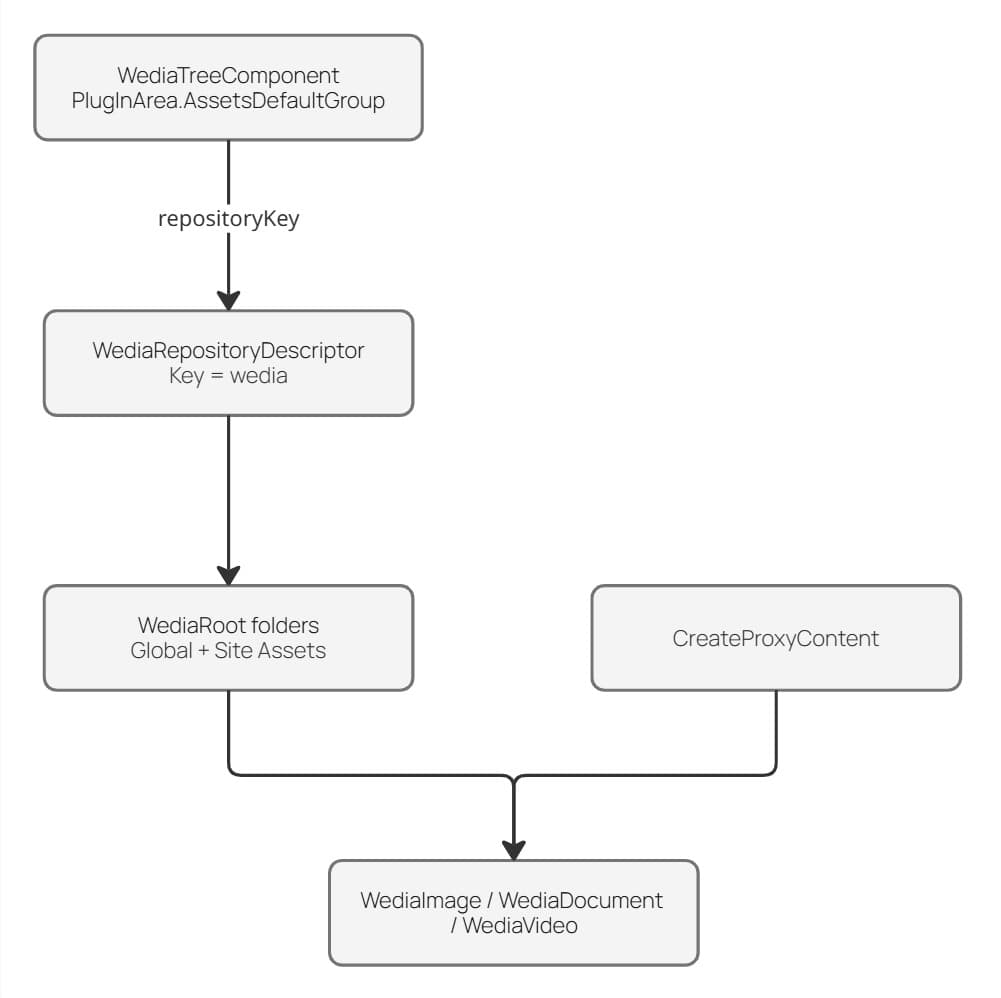
This ended up taking almost as long as the picker itself. Geta's CategoryContentRepositoryDescriptor and CategoryRootUIDescriptor were the map; Describe content in the UI was the legend.
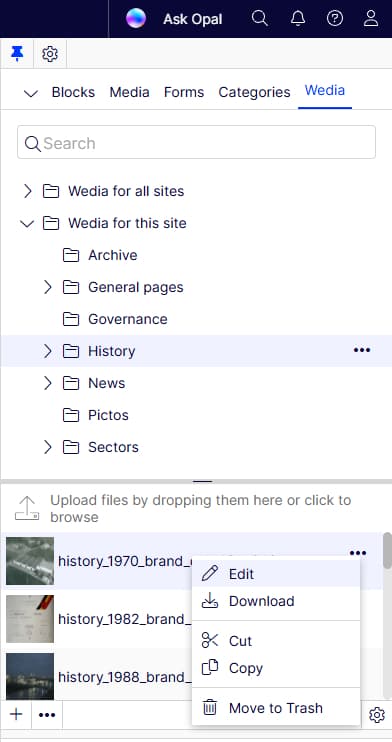
Phase 4: Headless delivery and later tweaks
Front-end: GraphQL fragments for WediaImage, image helpers that respect external URLs, crop transforms, and alt tags from the proxy item — not from re-fetching Wedia on every request.
Asset status: AssetStatus (Publish / Inactive / Delete) on Wedia assets — import and front-end fetch respect it.
Video: Same picker pattern for UIHint.Video, WediaVideo content type, and a video block on the site.
These are extensions of the same picker + proxy content model, not separate integrations.
How it fits together
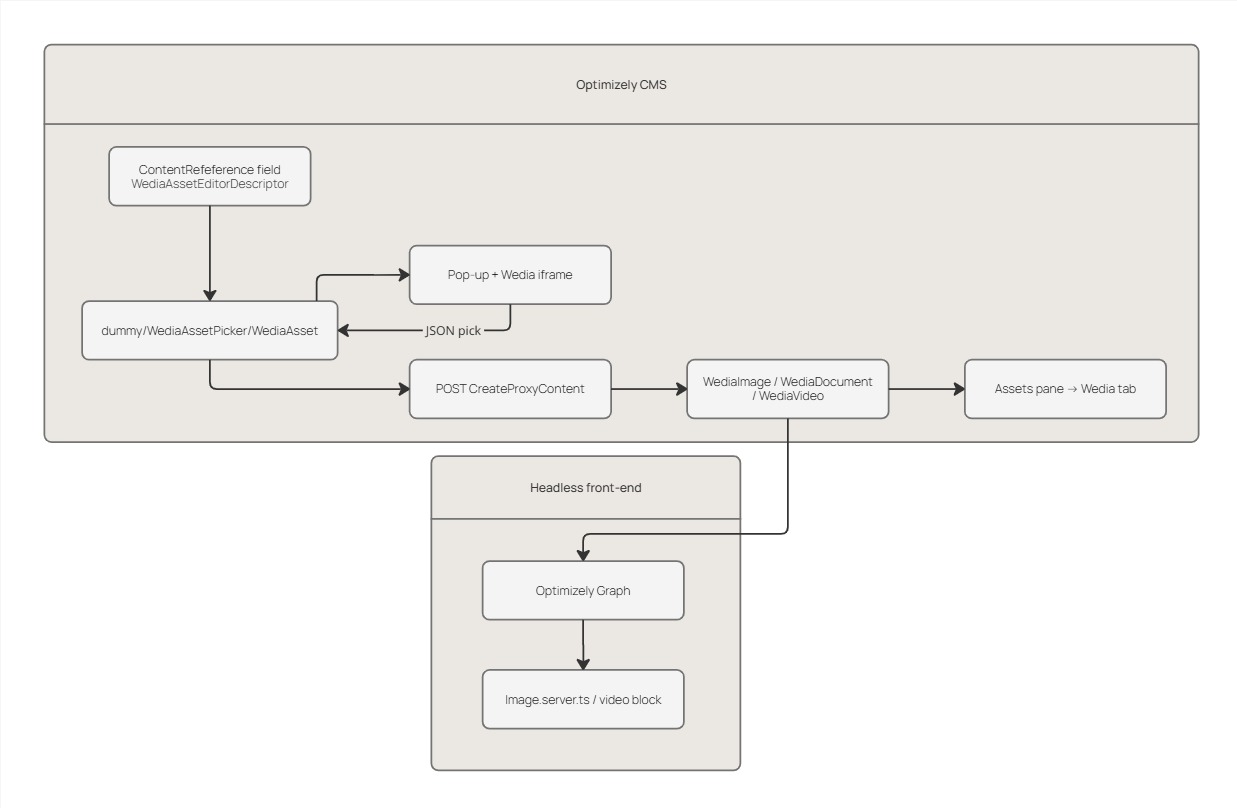
What I would do again (and what I'd skip)
Do:
- Start from your DAM's picker documentation and a real JSON sample — scope stays honest.
- Investigate CMS.zip and extend
ContentReferenceEditor. - Register Dojo in
module.configon day one. - Copy Geta's repository descriptor pattern for the Assets pane.
- Create proxy content items so Graph and the Assets pane stay native.
Skip (for iframe-picker DAMs like Wedia):
- Attempting to fork welcome-dam as a long-term architecture
- Reimplementing CMP server-side DAM UI infrastructure when you're not directly communicating with other back-ends
Part 2?
On another project we later integrated Optimizely DAM via the official CMP publishing package — same problem space, opposite approach (out of the box NuGet package). That deserves its own post for the trials and tribulations of mastering its integration. Catch you there!
Further reading
- Describe content in the UI — repository descriptors and assets components
- Ha Bui — CMP Integration UI addon — the UX target
- Sanjay Katiyar — Bynder integration — third-party DAM precedent
- welcome-dam-cms11 — deprecated community module we briefly mirrored
- Geta Optimizely Categories — Assets pane blueprint